A product whose SKU or ID already exists in the store is skipped unless you select Update existing products.WooCommerce documentation
Before and after
4,200 products
products.csv
ABCDE
1SKUNameIn stock?ParentRegular price
2TEE-BLKBlack T-shirtYes119.90
3TEE-BLK3Black T-shirt LNo2100419.90
4TEE-WHTWhite T-shirtYes19.90
5MUG-01MugYes8.50
6CAP-REDRed capNo12.00
7CAP-BLUBlue capYes12.00
8BAG-01Tote bagNo14.00
9HAT-01Wool hatYes16.50
Before
Fix it by hand in Excel or Sheets
Save the file as CSV UTF-8 from Excel or Sheets.
Write every Yes in the In stock? column as 1 and every No as 0: find and replace works.
Put the prefix id: in front of every ID of an existing product (100 becomes id:100), and make repeated SKUs unique.
Fix it in DocTransform
1. Upload products.csv into DocTransform.
2.Type
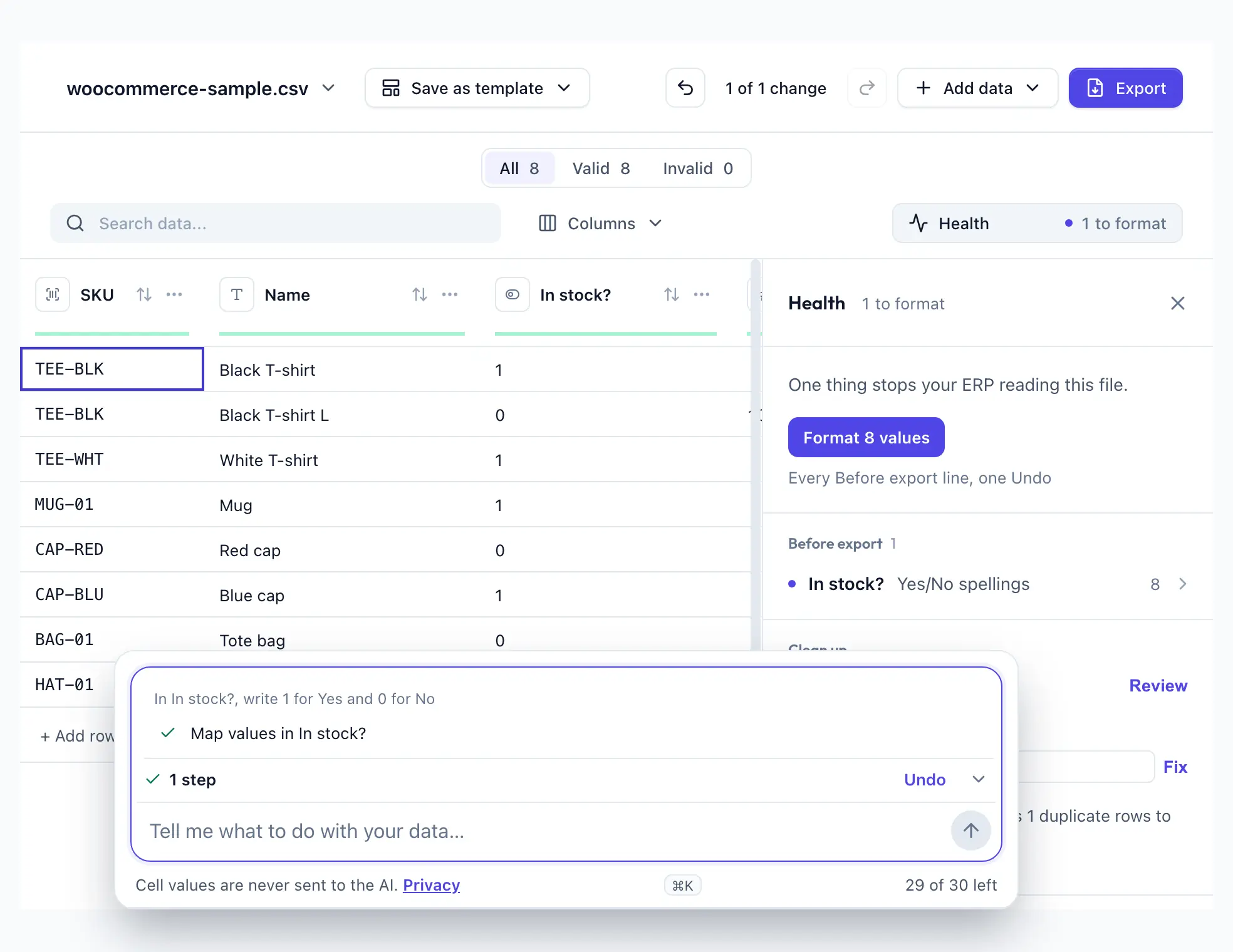
In In stock?, write 1 for Yes and 0 for No
and press Send. Check the steps it adds; Undo takes them all back.Or by hand: Apply the fix: open the In stock? column’s ⋯ menu → Configure Field → Boolean Value Mapping, set the true value to 1 and the false value to 0 → Save Rule. Then download as CSV, which is written in UTF-8. The id: prefix and a repeated SKU are yours to correct by hand: DocTransform saves no step for them.
3. Download the cleaned file from Export, ready for WooCommerce’s importer.
1Type the change in one sentence, in your own words.
2Wait about 5 seconds while the steps are written. Stop cancels.
3Check each step and how many cells or rows it changes.
4The file is clean. Not what you meant? One Undo takes it all back.
Save this fix once, then rerun it on next week’s export with one click.
Questions
Will DocTransform add the id: prefix for me?
No — DocTransform saves no step to rewrite an ID. Add the prefix by hand in front of every ID of an existing product.
Will DocTransform make repeated SKUs unique?
No — it saves no step for that. Give each row its own SKU by hand, or select Update existing products when you import.
Can I reuse this fix next time I export my products?
Yes — save it once in DocTransform and rerun it on next week’s export.
Salesforce, HubSpot, Shopify, QuickBooks, Mailchimp, Pipedrive, and WooCommerce are trademarks of their owners. DocTransform is not affiliated with them.